
A nameserver is a machine that tells the internet which IP address your domain uses. A private nameserver lets your domains point at ns1.yourdomain.com instead of the generic nameservers of whoever hosts your DNS. At GoDaddy the feature is called a custom hostname. Behind the scenes it creates the glue record the registry needs. The registry is the organization that runs a domain ending such as .com.
Updated for 2026: GoDaddy has reorganized its account area more than once. The steps below follow the current Domain Portfolio layout. Most tutorials on this topic still describe the older domain manager screens.
What a custom hostname does
Custom hostnames can be added to a DNS zone file and then used as nameservers for domains registered with GoDaddy. A zone file is the list of DNS records for one domain. A hostname is always assigned to an IP address.
You create the name ns1 on a domain such as example.com and attach an IP address to it. From then on the full hostname ns1.example.com can be used as a nameserver for other domains.
This matters because of a chicken-and-egg problem in DNS. Say the nameservers for example.com are named inside example.com. A resolver then cannot find their addresses without already knowing where to ask. Publishing the hostname and its IP at the registry breaks the loop. That published pair is the glue record.
Your nameservers may instead live on a completely different domain. In that case this step is not needed at all. The resolver looks them up the ordinary way.
One limit is outside GoDaddy’s hands. The registry of the domain extension decides the maximum number of hostnames a domain can have. So a .com and a country-code extension will not necessarily allow the same number.
Add a custom hostname
Have your nameserver IP addresses ready. These steps create the host record, the registry’s entry for one nameserver name and its IP.
- Sign in to your GoDaddy Domain Portfolio.
- Select an individual domain to open its Domain Settings page.
- Select DNS, then select Hostnames.
- Select Add Hostname.
- Enter the Host: the prefix of the hostname without the domain name, such as
ns1. - Enter the IP Address: the IPv4 address associated with that host.
- Select Add IP Address if the hostname needs more than one address. To remove an extra address, select Delete next to it.
- Select Save. The new hostname should now appear in the Hostnames list.
- Repeat the whole sequence for
ns2so you have a second nameserver.
Rules for the Host field
GoDaddy restricts what the prefix may contain:
- Only alphanumeric ASCII characters are allowed.
- Only the hyphen-minus and the period are allowed as special characters.
- The host cannot begin with a hyphen-minus.
Enter the prefix only. The domain is appended for you. Typing the full name produces something like ns1.example.com.example.com. That is one of the most common mistakes people make on this screen.
Wait, then switch the domains over
New hostnames are ready to use within 90 minutes in most cases, and GoDaddy sends an email when they are. Only after that should you change the nameservers on the domains that will use them. In the same DNS area, choose to use your own nameservers. Enter ns1.example.com and ns2.example.com.
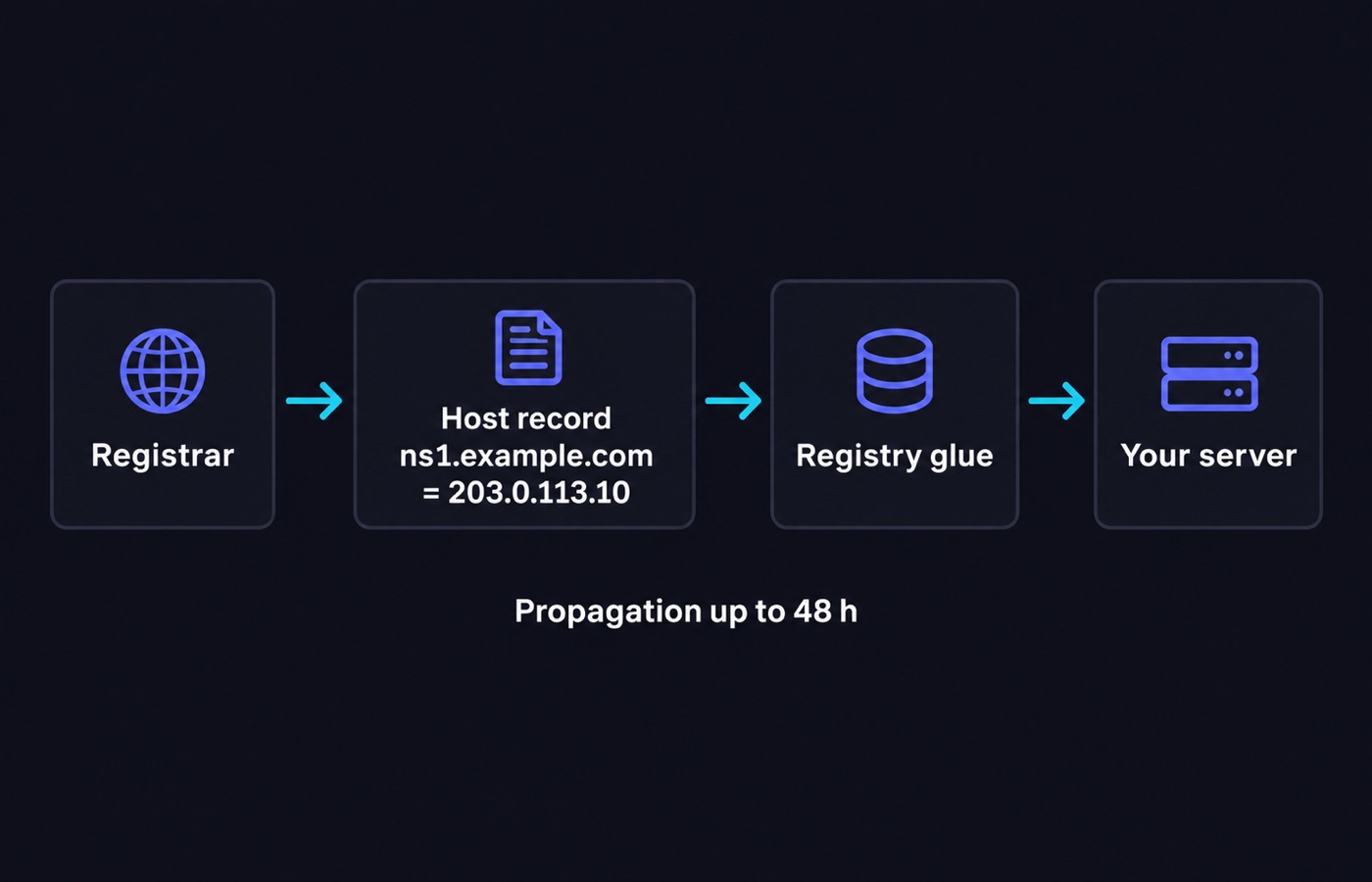
Do not skip the order here. A live domain switched to nameservers that the registry does not know about yet will go offline. The same happens if those nameservers are not answering queries. The site stays down until the delegation catches up.
Make sure something is actually serving DNS
Creating a hostname publishes a name and an address. It does not start a DNS service. The machines at those IP addresses have to be authoritative for every zone you delegate to them. Authoritative means the server holds the real records, not a cached copy. That means one of the following:
- A server you run with a DNS daemon configured for those zones. It typically sits alongside a control panel on a VPS or dedicated server.
- A managed DNS service that lets you brand the nameserver hostnames with your own domain.
Two nameservers is the practical minimum, and they are worth putting on different IP ranges. Two names pointing at a single machine give you the branding without any of the redundancy the second name implies.
Verify the result
Registry and cache timing make DNS changes feel unpredictable, so check rather than guess. Resolvers keep the old delegation until its TTL expires. TTL, or time to live, is how many seconds a record may be cached. That is why a change can look live from one network and stale from another for hours.
- Confirm the hostname resolves on its own.
dig ns1.example.com A - Confirm the delegation now lists your names.
dig +trace example.com NS - Confirm each server answers authoritatively for a zone you pointed at it.
dig @ns1.example.com example.com SOA - Check the domain’s WHOIS record. It shows the nameservers the registry currently publishes.
Lower the TTL on records you plan to move a day or two before the migration, if your DNS host allows it. That shortens the window in which visitors can be sent to the old address.
Hosting tip
Branded nameservers are only worth the setup when the servers behind them are yours for the long term. In practice that means a VPS or a dedicated machine with more than one usable IP address. Our dedicated hosting comparison lists providers with their included IP allocations. Once the change is live, a WHOIS lookup shows exactly which nameservers the registry has on file for the domain.
Things that commonly go wrong
- Changing an IP address that is already in use. Every domain delegated to that hostname follows it. Move the service first, confirm the new address answers, then update the hostname.
- Removing a hostname that domains still use. Reassign those domains to working nameservers before you delete anything.
- Assuming propagation is instant. Registry publication plus cached TTLs mean a change is not fully visible everywhere the moment you save it.
- Creating one nameserver. Most registries expect at least two. A single point of failure for DNS takes down everything at once.
Registrar interfaces get renamed and rearranged regularly. If a menu name here does not match what you see, check GoDaddy’s current help article for custom hostnames. Do that before making the change on a production domain.
Sources
Written and fact-checked by the WebHostingBreak Editorial Team in line with our editorial policy. Prices quoted here come from the provider reviews we maintain and carry the date they were last checked. Spotted an error? Tell us.