
“How much disk space and bandwidth do I need?” is the question that hosting marketing is designed to prevent you from answering. Disk space is how much room your files take up on the server. Bandwidth, also called transfer, is how many bytes leave the server each month. Updated for 2026, this guide replaces the guesswork with arithmetic you can check. It shows what quietly consumes an account’s quota. It also explains how to measure your real numbers before you pay for a bigger plan.
Start with the math, not the marketing
Monthly transfer has a simple formula: average page weight multiplied by monthly pageviews. Page weight is everything the browser downloads for a typical page, such as HTML, images, fonts and scripts. You can read it from the network panel of any browser’s developer tools.
Take a site with 2 MB pages and 30,000 monthly pageviews. It needs roughly 60 GB of transfer. Now add margin for repeat assets that are not cached, plus bots, feeds and email. Then round up. For that site, 90 GB is a sensible plan target.
Bandwidth by site type
- Personal blog or portfolio. 1.5 MB pages and 5,000 pageviews come to about 7.5 GB. Almost any plan covers it.
- Small business site. 2 MB pages and 20,000 pageviews come to about 40 GB, so shop for 60-80 GB.
- WooCommerce or Magento store. 2.5 MB pages and 100,000 pageviews come to about 250 GB. Add product image uploads, order email and admin sessions on top.
- Image-heavy or video site. Video breaks the model. One 1 GB video streamed 500 times is 500 GB on its own. That is why serious video belongs on a specialist video platform rather than a hosting account.
- Small SaaS or API. Responses are tiny: 10 KB multiplied by 2 million calls is only 20 GB. But backups pulled off the server every night can dwarf the app traffic.
Disk space by site type
Application code is rarely the problem. A WordPress install with a theme and a dozen plugins typically occupies a few hundred megabytes. Content is what grows.
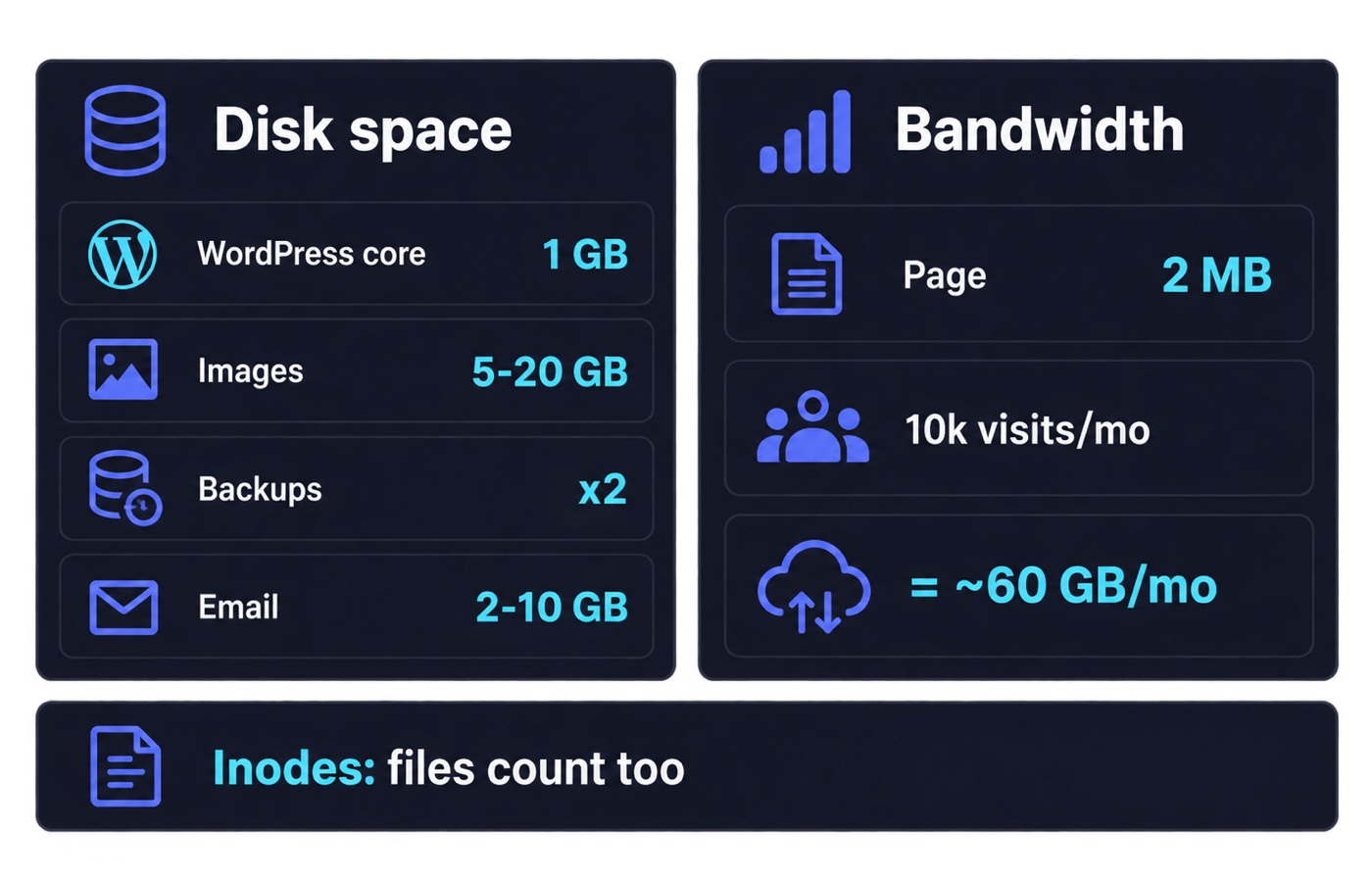
A blog with 300 posts and three 300 KB images each holds roughly 270 MB of media, plus a database measured in tens of megabytes. A store with 2,000 products and five 400 KB images per product is about 4 GB of media, before invoices and logs. A photography site that keeps full-resolution originals online can pass 50 GB without much effort. A small SaaS is usually bound by its database and logs rather than by files.
What quietly eats disk
- Backups stored in the same account, which is also why they are not really backups.
- Mailboxes. IMAP keeps everything, attachments included, and mail counts against the same quota on most shared plans.
- Raw access logs, error logs and analytics archives.
- Staging and development copies of the site, each with its own uploads folder. Staging is a test clone you edit before you touch the live site.
- Database growth from post revisions, sessions, transients, order history and plugin tables.
Inodes: the limit nobody advertises
Most shared hosts cap the number of files an account may hold. That count is measured in inodes, and one inode is one file or folder. Cache folders, node modules, thumbnails in multiple sizes and years of mail create enormous numbers of tiny files. So an account can hit the inode ceiling while using a fraction of its disk quota.
When that happens, uploads fail and backups break for reasons that look nothing like “disk full”. Ask for the inode limit before signing up, and treat it as seriously as the gigabytes.
Unmetered versus unlimited
“Unmetered” means the provider does not bill you per gigabyte. It does not mean the server will carry any load you send it. “Unlimited” is a marketing word attached to an acceptable use policy, and that policy always contains a fair-use clause.
Neither term removes the limits that actually decide whether your site stays fast. Those limits are CPU time, entry processes, I/O throughput and inodes. Read those numbers in the plan’s technical specification. Read the acceptable use policy too, before you assume a backup archive or a media library is welcome.
How cPanel counts bandwidth
cPanel is the control panel most shared hosts give you. WHM is the admin panel above it, used by the server owner. Both monitor traffic from HTTP browser requests, FTP transfers, outgoing SMTP and incoming POP3 or IMAP mail. Email therefore counts against your transfer allowance, and a busy mailbox can be a surprising share of it.
cPanel’s own documentation notes that these figures can differ from log analyzers such as AWStats or Webalizer. Those tools measure a different thing. On the main domain, alias (parked) domain traffic is included in the same total.
Put a CDN in front of the origin
A content delivery network, or CDN, is a set of servers that keeps copies of your files close to visitors. It serves images, CSS, JavaScript and fonts from those edge locations. Most bytes then never leave your hosting account after the first request. For an image-heavy site this can move the majority of transfer off the origin, and it shortens load times for distant visitors at the same time.
There are two caveats. Dynamic pages and logged-in sessions still reach your server. And the CDN’s own bandwidth is metered separately on many plans, so you are shifting the cost rather than deleting it.
Measure before you buy
Numbers you already have beat any estimate. In cPanel, the Bandwidth interface under Metrics shows daily and monthly transfer broken down by service. You can see there how much is web traffic and how much is mail. Resellers get the same picture across accounts in WHM’s View Bandwidth Usage interface, with Xfer, Limit and Usage columns and month-by-month navigation. Take your busiest month from the last year, double it, and buy for that.
When a bigger plan is the wrong fix
Sites rarely outgrow shared hosting because of gigabytes. They outgrow it because of concurrency, which is how many visitors the server handles at the same moment. The signs are slow admin screens at peak hours, “resource limit reached” errors, and checkouts timing out while a backup runs. Those are CPU, memory and I/O symptoms, and more disk will not touch them. If you see them regularly, price a plan that gives you guaranteed resources instead of a larger quota.
Hosting tip
Compare plans on the numbers that constrain you, not the ones printed in the biggest font. For a content site those are inodes, CPU and entry processes. For an application, look at guaranteed RAM and disk type. Our web hosting and VPS hosting sections list those specifications side by side.
That lets you match a plan to the arithmetic above rather than to a slogan. Interface names and quota labels vary by provider and cPanel version. So confirm the exact limits in writing with support before you migrate.
Sources
- docs.cpanel.net/cpanel/metrics/bandwidth
- docs.cpanel.net/whm/account-information/view-bandwidth-usage
- docs.cpanel.net/whm/packages/add-a-package
Written and fact-checked by the WebHostingBreak Editorial Team in line with our editorial policy. Prices quoted here come from the provider reviews we maintain and carry the date they were last checked. Spotted an error? Tell us.